Over the last few days, a couple of people (literally, two… maybe three) asked if I could talk about some use cases for SiReS Ex. Basically, what does this thing do and why it might be useful to librarians working with Polaris and SimplyReports. Rather than answer everyone in chat or in the comments, I thought: Hey, maybe I can write two posts about of this weird little extension. Why not? I wrote the thing because it was something that I would use, and I figured others would use it because it’s a topic of discussion amongst Polaris ILS administrators in the IUG Discord.
So okay, here we go.
Unless you’re a Polaris ILS administrator working with SQL queries, SiReS Ex is probably useless for you.
Any questions?
All right, fine. Yeah, there are uses beyond that, and I absolutely thought about those use cases with every line of code I worked on with this extension. (No I didn’t, but let’s pretend.) Let me start with the easy part though, which are the use cases I ran into and those that other Polaris ILS admins run into.
When you create and run a report in SimplyReports, the results page has a SQL query hiding in the page source. This isn’t really a secret and, if it is, it’s because you’re talking to a new Polaris admin and they haven’t been told about it yet. This SQL query is useful in a lot of ways.
- You can use that query as the foundation of new reports that you run in a SQL Server IDE or build into a paginated report.
- You can use that query to learn how the Polaris database works. The Polaris database is vast, my friends, and one of the harder things to learn are the ways those tables relate to each other and how they interact. Jokes aside, I literally learned how the patron addresses are handled in the Polaris database because of pulling SQL queries from SimplyReports. The relationships between patron registration and patron addresses are not as easy as you’d think and there are a couple of ways to make that work for you.
- Building on both of those things, sometimes you need a query that takes you most of the way there and then you can modify it to go the distance. I’ve done this a lot where I need a query that will bring me some data, but I also need it to do two other things that SimplyReports isn’t really set up for. No worries, I can build a report that’s almost exactly what I need, pull the query out of the page source, and modify it as needed. I still do this with acquisitions related reports because I’m not great with that side of the system. I’ll take all the help I can get.
But that doesn’t mean this wouldn’t be helpful to a librarian who never opens a SQL IDE, who has little idea what SSMS is and why they’re probably better off not knowing all that much about SSMS. (For one, even on the fastest servers with obscene amounts of RAM, you can launch SQL Server Management Studio and it will still manage to take double-digit numbers of seconds to fully open and log into the database.) Because, you see… Polaris ILS has a killer feature that, while it has its limitations, it’s still one of the greatest facets of the entire system:
So long as you have the permissions, you can search Leap and the Staff Client using SQL in the Find Tool.
Yeah yeah yeah, you can search for the title of an item in the Find Tool, or look for it by author or keyword. Great, sure. That’s table stakes. If you can’t search your ILS then you’re not running an ILS, you’re trying to manage a library using a Cat6 cable plugged into a potato. But beloved, did you know that you can use the Find Tool to search for books, with a call number prefix of LP (for Large Print), belonging to a single branch, that were checked in within the last 365 days, but haven’t checked out since the end of last October?
Because yeah, that’s a thing you can do.
select cir.ItemRecordID
FROM Polaris.CircItemRecords cir with (nolock)
INNER JOIN Polaris.ItemRecordDetails ird with (nolock) on (cir.ItemRecordID = ird.ItemRecordID)
WHERE cir.AssignedBranchID in (52)
AND cir.CheckInDate between '2024-11-01 00:00:00'
AND '2025-11-01 23:59:59'
AND cir.LastCheckOutRenewDate between '2022-11-01 00:00:00'
AND '2024-10-31 23:59:59'
AND ird.CallNumberPrefix between 'LP'
AND 'LP'
AND ird.CallNumberPrefix is not null
AND cir.MaterialTypeID in (18)
AND cir.ItemStatusID in (1)The SQL query you see above was built through SimplyReports. I logged in, made a few selections, checked a few boxes, added a couple of dates, and ran the report. Then I used SiReS Ex to pull the query from the results page and plugged that into Leap’s item record Find Tool SQL search. Important note: You will need to remove the semicolon from the end of the query before running it in the Find Tool, otherwise you’ll get an error. But semicolons aside:
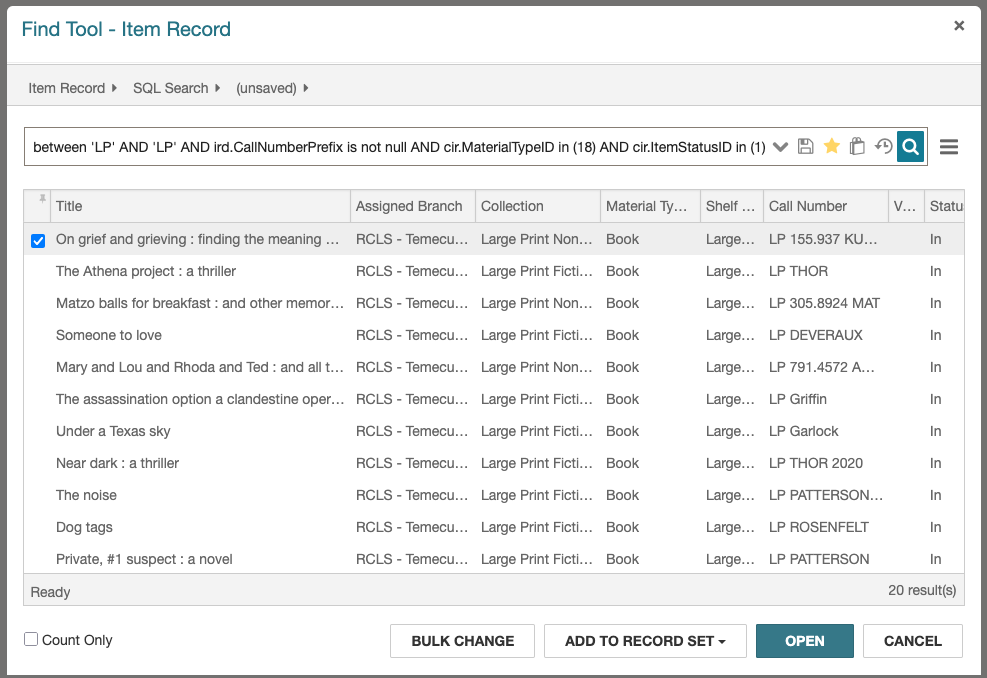
Your Find Tool may look different than mine, and that query above will probably not work for you because you may not have an organization 52 and your MaterialTypeID for books is likely different, and so on. But you could get into SimplyReports yourself, build a similar query, and use that in your Find Tool. The best part is, you can save that query in your Find Tool so that others can use it. And the second best part is, you can modify that query to better suit your needs.
For instance, let’s change this up a bit. I want this query to do what it does now, but I want those dates to always work off my current date. In other words, I want to see a list of these items where the last check-in happened between today and 365 days ago. And I want that list to reflect items that were last checked out between today’s date, three years ago, and today’s date one year ago. That way, I’m always looking at the latest data, right? Okay, so we’ll just throw some SQL date math in there.
select cir.ItemRecordID
FROM Polaris.CircItemRecords cir with (nolock)
INNER JOIN Polaris.ItemRecordDetails ird with (nolock) on (cir.ItemRecordID = ird.ItemRecordID)
WHERE cir.AssignedBranchID in (52)
AND cir.CheckInDate between DATEADD(YEAR,-1,GETDATE())
AND GETDATE()
AND cir.LastCheckOutRenewDate between DATEADD(YEAR,-3,GETDATE())
AND DATEADD(YEAR,-1,GETDATE())
AND ird.CallNumberPrefix between 'LP'
AND 'LP'
AND ird.CallNumberPrefix is not null
AND cir.MaterialTypeID in (18)
AND cir.ItemStatusID in (1)Every day you run that you’re going to get the latest data because the dates are automatically calculated for you.
Now, there are some rules about using SQL in the Find Tool. The first and the most important one is that you can only call a primary key. In this case, we’re calling ItemRecordID. You can do things with PatronID, BibliographicRecordID, RecordSetID, and others, but you cannot SELECT more than one thing and that thing has to be a primary key. You can find out more about SQL searches in the Find Tool through the Staff Client documentation and the Leap help documentation. Once you get into SQL searching in Leap, you can discover all kinds of interesting things. Full disclosure, this next query didn’t come from SimplyReports, but you could use SimplyReports to get a start on it. This query pulls a list of all items checked out at a specific branch on 11/18/2025. Plug it into the Find Tool, and it works.
SELECT
	cir.ItemRecordID
FROM
	PolarisTransactions.Polaris.TransactionHeaders th
INNER JOIN
	Polaris.Polaris.TransactionDetails item
	ON (th.TransactionID = item.TransactionID AND item.TransactionSubtypeID = 38)
INNER JOIN
	Polaris.Polaris.CircItemRecords cir
	ON (cir.ItemRecordID = item.numValue)
WHERE
	th.TranClientDate >= '2025-11-18 00:00:00.000'
	AND th.TranClientDate < '2025-11-19'
AND
	th.TransactionTypeID = 6001
AND
	th.OrganizationID = 52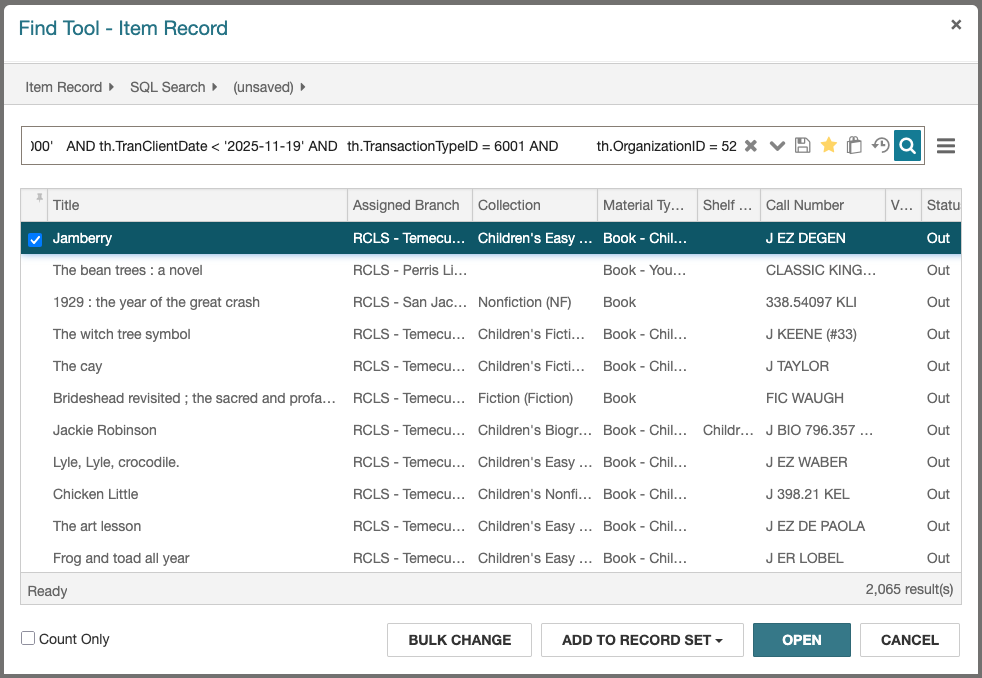
Okay, now you know the basic rules. So if you know how to build a report in SimplyReports that follows them, you can use SiReS Ex to pull that SQL and start working with it in your Find Tools. I literally cannot tell you all the things you would be able to do with that, but if there’s an itch you’re looking to scratch? Maybe my silly little browser extension might help.
You can get SiReS Ex for Firefox and Chromium based browsers.
And if you have questions, hit me up in the IUG Discord, via Signal (CyberpunkLibrarian.01), or through email at cyberpunklibrarian [at] protonmail [dot] com.